Cornell Notes Template
Everything runs in your browser — nothing is uploaded
Common settings
Shared by all templates
Template settings
Cornell Notes Template
All templates
View all → Lined Writing Paper PrintableEveryday ruled paper for homework, notes and handwriting
 Vertical Lined PaperVertical rules for top-to-bottom writing systems
 Cornell Notes TemplateCues, notes and summary — the three-zone Cornell methodCurrent
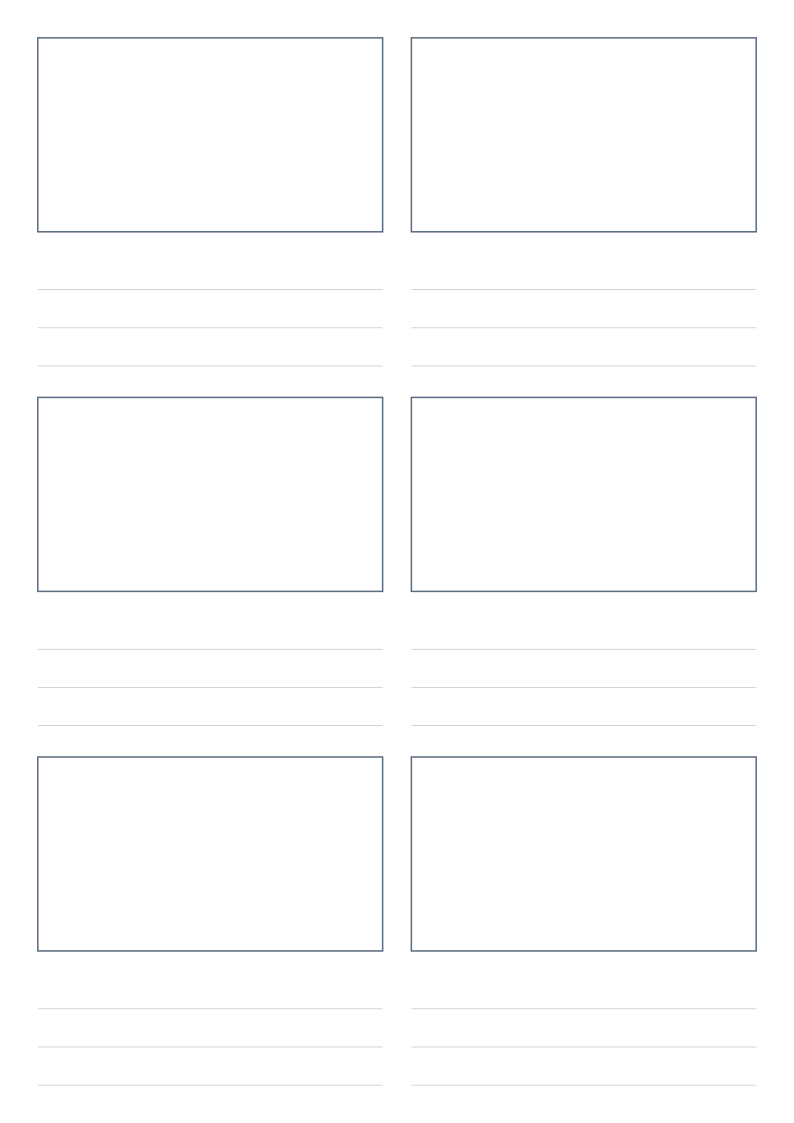 Storyboard Template PrintableSequential frames for planning video, film and animation
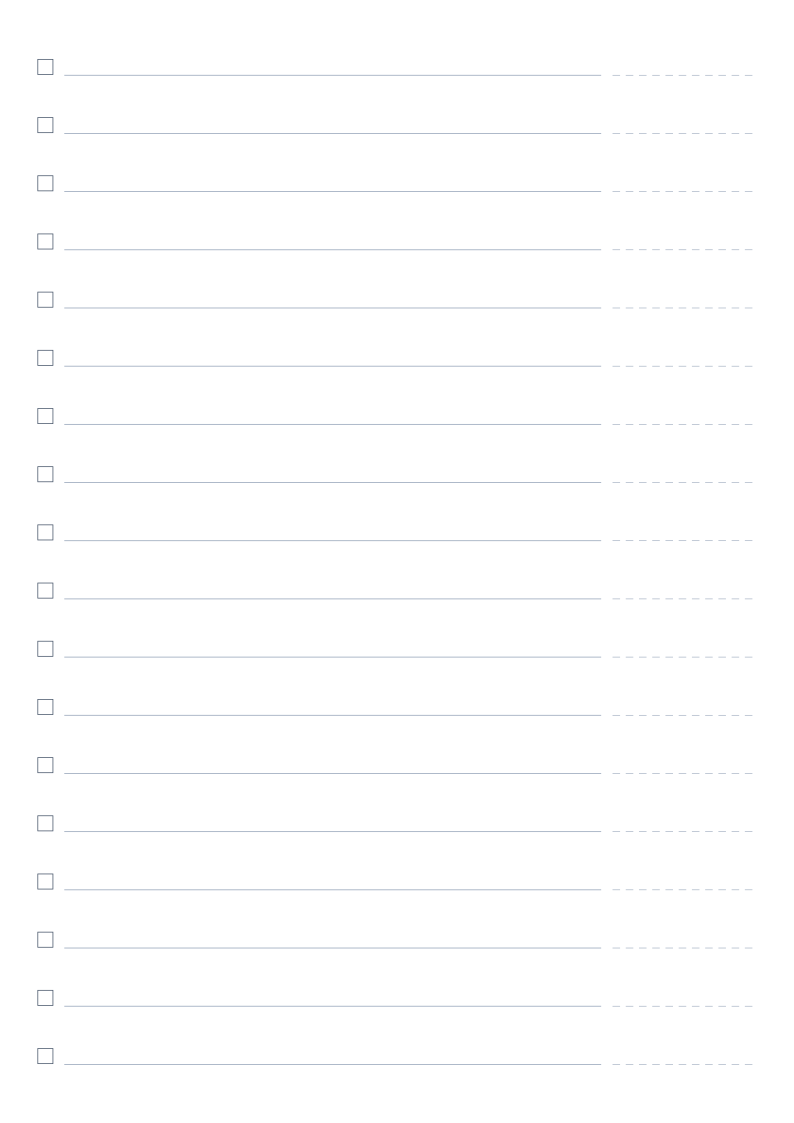 To-Do List PrintableNumbered rows with checkboxes for everyday task lists
About Cornell Notes Template
The standard Cornell layout: a wide notes column on the right, a cue column on the left and a summary strip along the bottom.
Read the full guide to Cornell Notes Template: details, usage and FAQ
Typical uses
- Lecture and class notes
- Reading notes and knowledge organisation
- Self-testing by covering the notes column
FAQ
Can I change the zone sizes?
Yes. "Cue column width" defaults to 60 mm and "Summary height" to 50 mm; adjust both to suit your handwriting. The notes-area line spacing is separate and defaults to 8 mm.
Why are the printed dimensions wrong?
If your print dialogue has "Fit to page" enabled or scaling below 100%, the whole grid is scaled down. Set scaling to 100% / "Actual size", and tick the calibration ruler in the generator, then measure the 5 cm mark with a ruler. PDF dimensions are locked in the file, so they are the safest option.
Does anything I type or upload get sent to a server?
No. Generation, preview and export all happen inside your browser. Nothing is uploaded and no account is needed.
Related templates