Comparing Numbers Worksheet
Everything runs in your browser — nothing is uploaded
Common settings
Shared by all templates
Template settings
Comparing Numbers Worksheet
Grade preset
Difficulty
Layout
Answers & header
All templates
View all → Column Addition Math PaperVertical arithmetic with digits lined up place for place
 Coordinate Plane Graph PaperLabelled axes and four quadrants for functions and geometry
 Polar & Logarithmic Graph PaperPolar coordinate circles plus semi-log and log-log scales
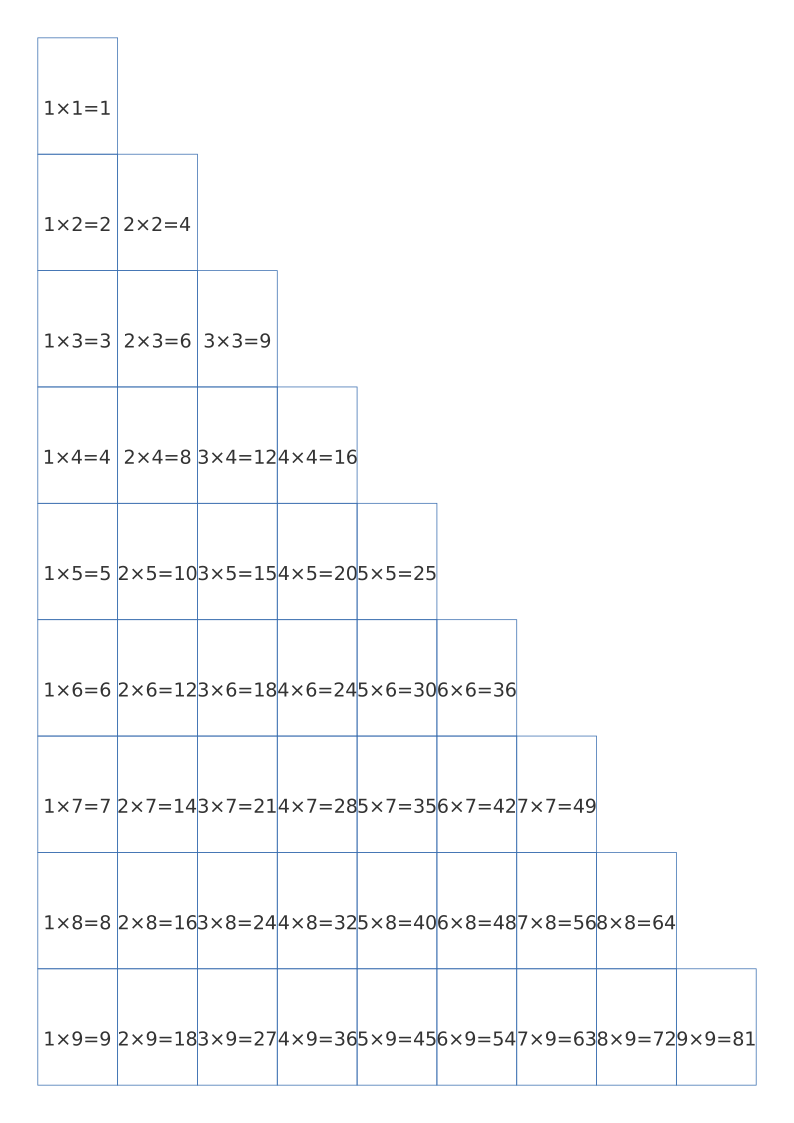 Multiplication Chart & Times TablesA completed chart plus a blank grid for times-table practice
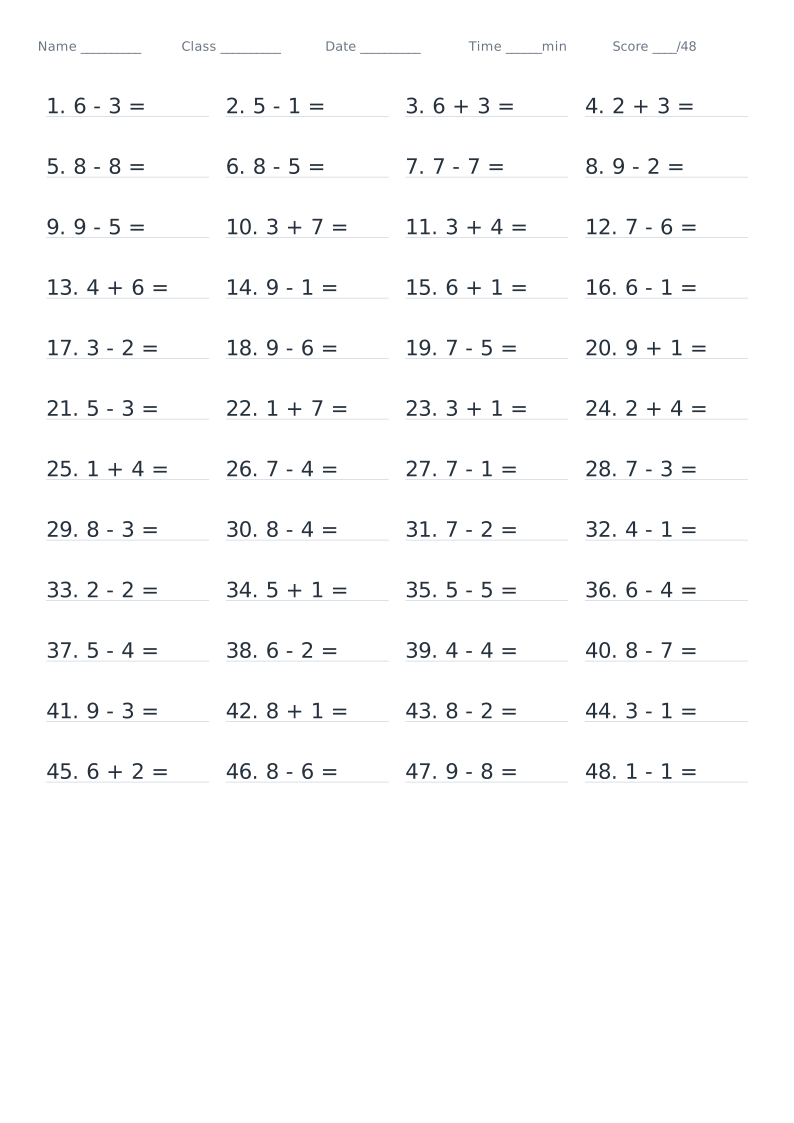 Math Drill Worksheet GeneratorMental maths, column and step-by-step problems generated by grade, with optional answer key
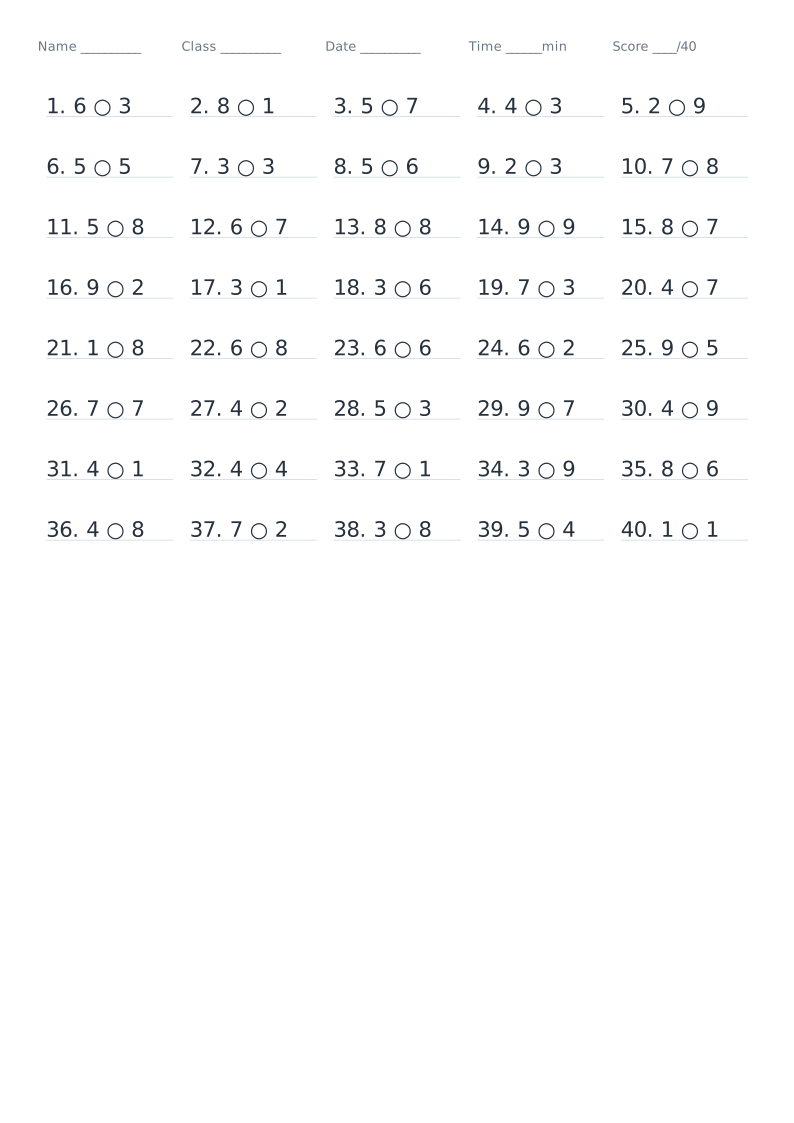 Comparing Numbers WorksheetFill in >, < or = — direct comparisons or work-it-out-firstCurrent
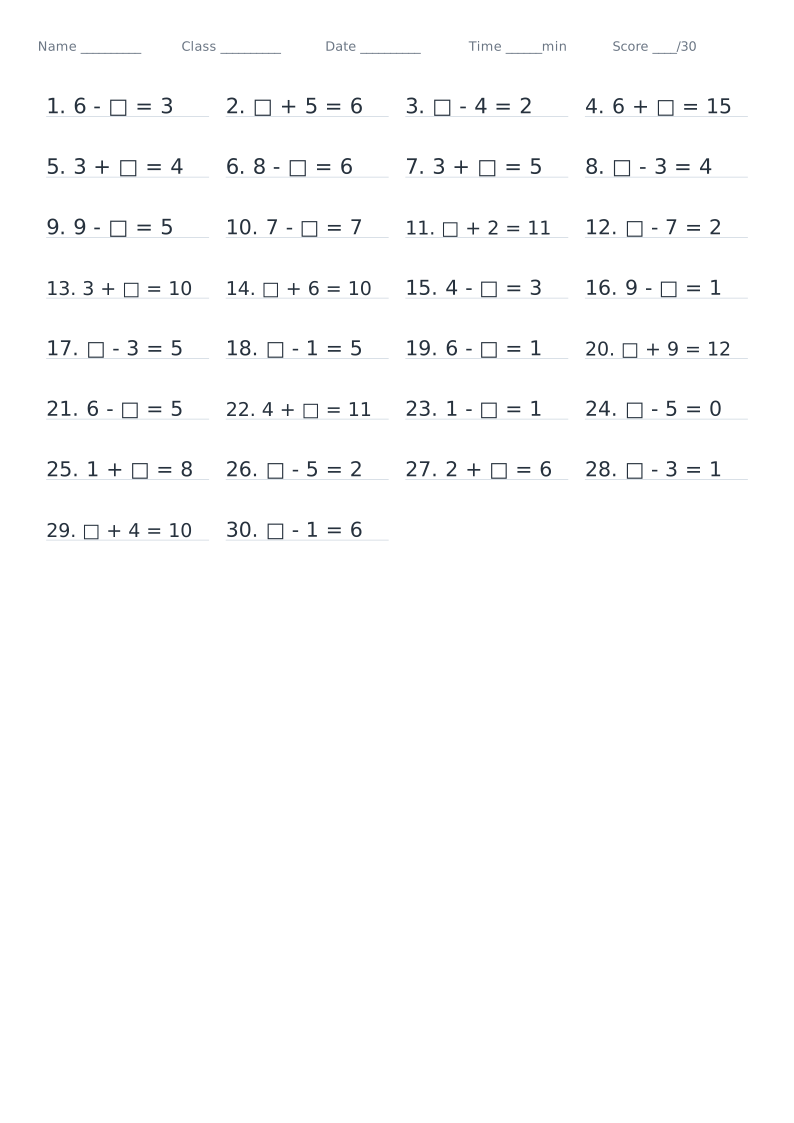 Fill in the Operator or NumberMissing operators, missing numbers, and "largest number that fits"
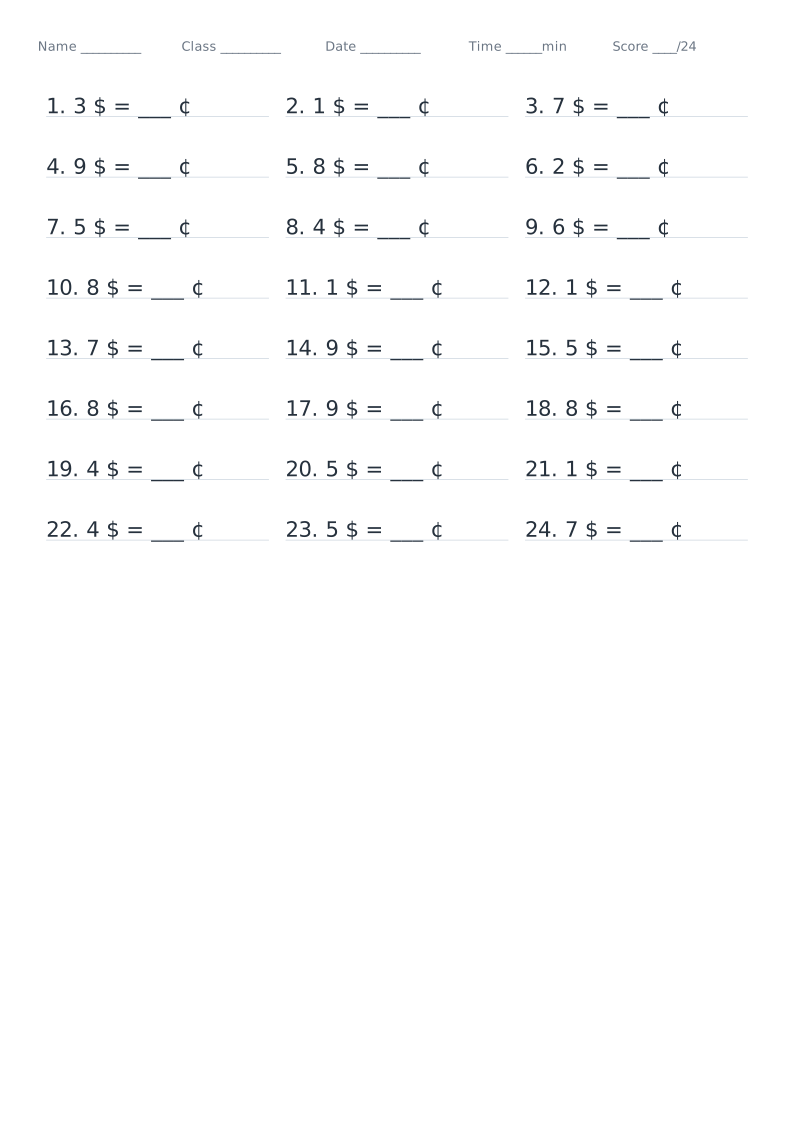 Unit Conversion WorksheetLength, weight, area, volume, time and money conversions
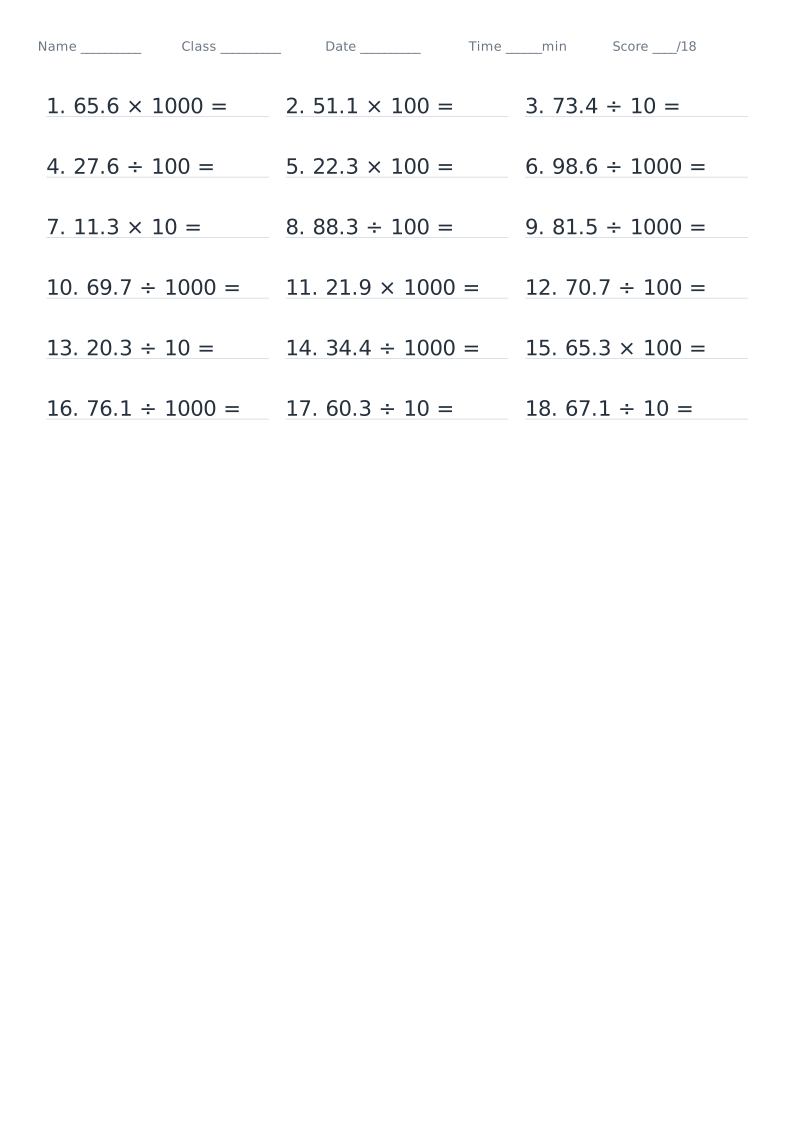 Decimal Point Shift WorksheetMoving the point when multiplying or dividing by 10, 100, 1000, 10000
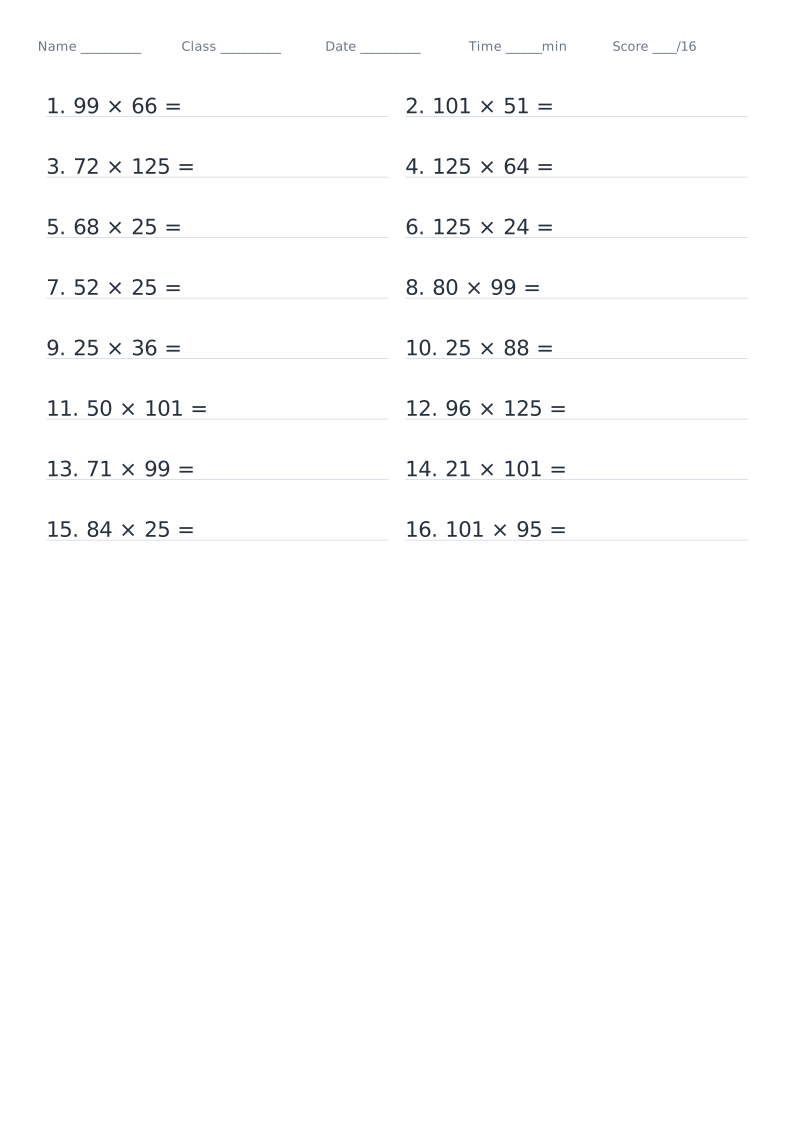 Clever Calculation WorksheetRounding, splitting, chained operations and the distributive law
About Comparing Numbers Worksheet
Fill in >, < or = inside the circle. Choose direct comparisons, work-it-out-first problems, or both; set digit length, decimals and whether equal answers may appear.
Read the full guide to Comparing Numbers Worksheet: details, usage and FAQ
Typical uses
- Comparing numbers to 100 (grade 1)
- Work out the sum first, then compare
- Comparing decimals (grades 3–6)
- Daily warm-ups and timed drills
FAQ
Will any answers be "="?
With "Allow equal" on, roughly one problem in five is an equality — which matches how textbooks ask for >, < or =. Turn it off and you only get > and <.
Why are the printed dimensions wrong?
If your print dialogue has "Fit to page" enabled or scaling below 100%, the whole grid is scaled down. Set scaling to 100% / "Actual size", and tick the calibration ruler in the generator, then measure the 5 cm mark with a ruler. PDF dimensions are locked in the file, so they are the safest option.
Does anything I type or upload get sent to a server?
No. Generation, preview and export all happen inside your browser. Nothing is uploaded and no account is needed.
Related templates